
What’s Going On…
For some time now, artificial intelligence has been moving into the photo post-processing tools—Adobe Lightroom, Photoshop, and others—that I use. Early features such as content-aware editing, sky replacement, and noise removal made it easier to remove distractions or correct technical flaws. Adobe’s later generative tools went further, allowing users to add objects, expand compositions, and now even generate entire images or make substantial changes to subjects, weather, clothing, and style with its “AI Assisted Editor.” I think these capabilities are valuable for graphic designers and commercial image-makers, but they present a challenge for anyone who wants a finished image to remain recognizably rooted in a photograph they’ve made. Unsurprisingly, the photographic world is awash in controversy on the ethics of using AI, which I will not attempt to summarize here.
When I share an image publicly, I will be transparent about any AI use that materially changes what my camera recorded. Routine tonal adjustments, cropping, and minor distraction removal do not need special explanation, but sky replacement, style emulation, or any substantial alteration should be acknowledged so viewers understand how the final image was made.
If you’re interested, scroll down below the examples to read my detailed ground rules and how I use AI in post-processing my images.
An Example of How I Use AI
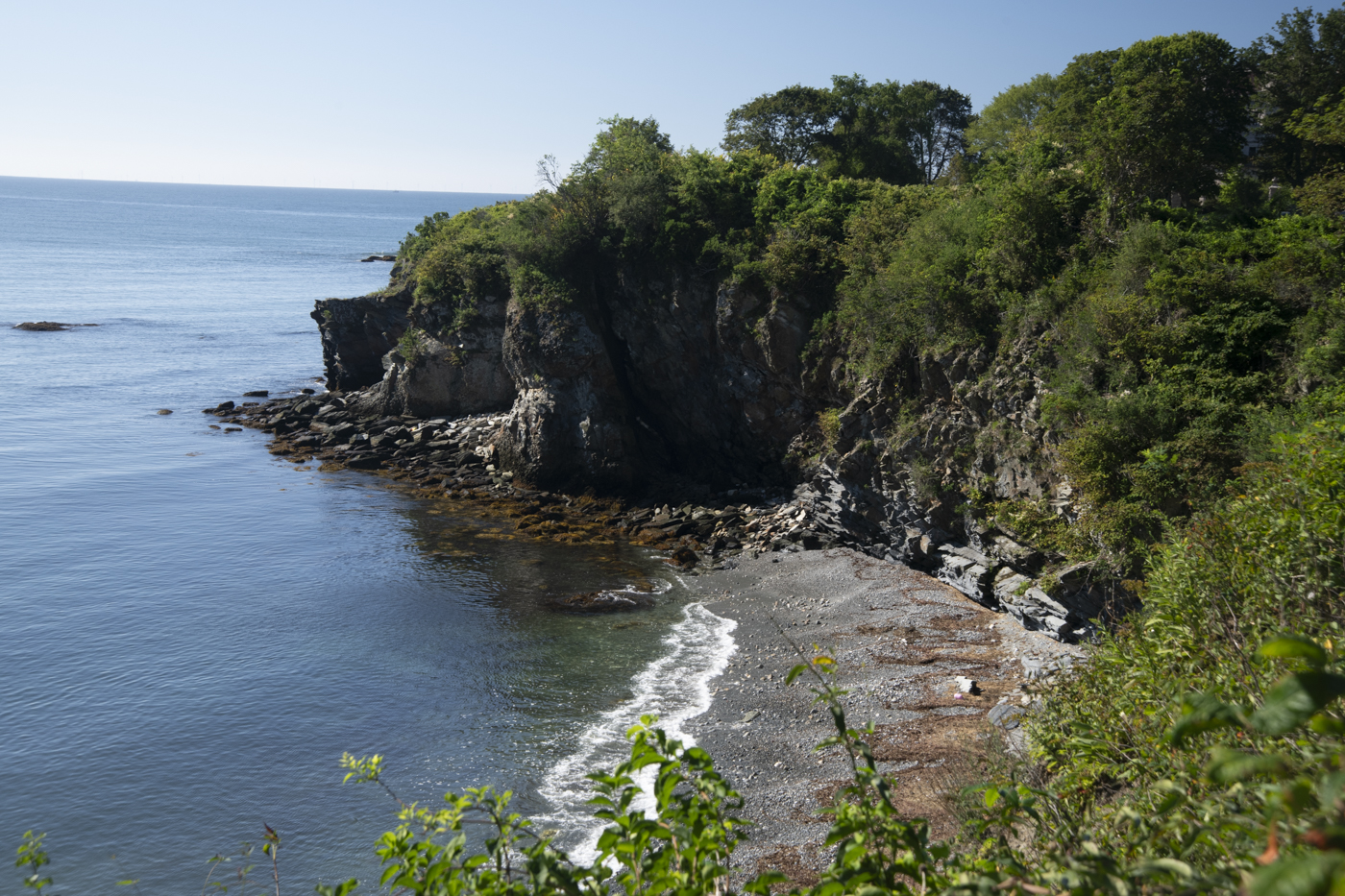
Here’s an example of my method for creating a photographic look inspired by a particular style. The starting point was a photograph I made of the shoreline along the Cliff Walk in Newport, Rhode Island, a scene I thought had dramatic potential. I wanted the final image to evoke the atmosphere of 19th-century American painters such as Thomas Cole or Alfred Bierstadt. Slide 1 shows the original photo. I first used Photoshop’s AI Assisted Editor on the photo with the prompt “render in the style of Thomas Cole.” The result, shown in Slide 2, was not what I wanted: it turned the scene into something cartoonish and added objects such as a ship, dead trees, an arch, and a pathway. I then tried a different AI model, which produced a more restrained version in Slide 3, followed by an Alfred Bierstadt-inspired version in Slide 4. Using those AI-generated images only as inspiration, I edited the original photograph in Photoshop to create Slide 5 without using generative AI, but only conventional Photoshop tools, including sky replacement.
CliffWalkBeach_SOOC_7121_260825
Another Example
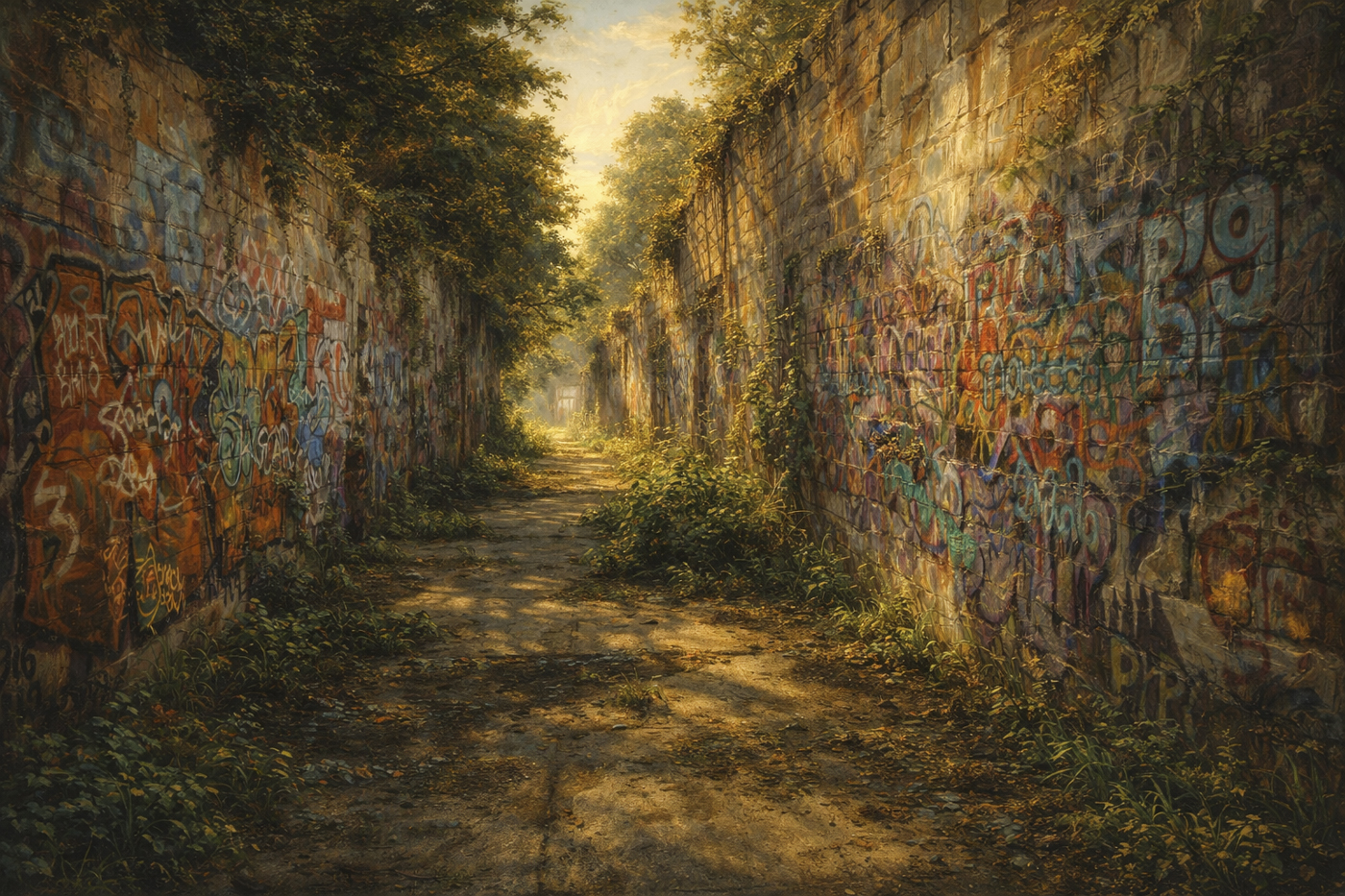
When I was in Rhode Island, I visited Forth Weatherill State Park. Long abandoned, it’s become known for its graffiti. The old concrete fort quarters are awash in the overlapping work of many graffiti artists. I made a few images in the “valley of graffiti.” As with the Cliff Walk image, I wanted to express the image in a 19th century style, thinking ironically about how a 19th century artist might have painted the graffiti!
The sequence is the same: start with the original photo; look at some examples courtesy of generative AI; using them as inspiration for my final edit using conventional Photoshop tools and sky replacement.
Grafitti_Bierstadt_7079_260825
My Ground Rules
- I believe photography is a legitimate art form. My approach to post-processing a photograph is to express my artistic vision and invite the viewer to linger over—and enjoy—the image.
- Starting with a photograph I made with my camera, I use editing tools, including some AI, to create a final image that communicates the visual and emotional experience I remember or wanted to express from the moment I made the shot. That is what I mean by “artistic vision.”
- I will always begin with an image I photographed myself, not with an image generated from a prompt or borrowed from another source.
- Above all, I’ll use AI as a tool, such as generating a specific artistic style from my photo, not as an end in itself. I will not create an image—or add major objects within an image—ex nihilo from a text prompt. The photograph made with my camera must always be the starting point.
- When I share an image publicly, I will be transparent about any AI use that materially changes what the camera recorded. Routine tonal adjustments, cropping, and minor distraction removal do not need special explanation, but sky replacement, style emulation, or substantial alteration should be acknowledged.
How I Use AI When Processing My Images
- I use AI tools available in Lightroom and Photoshop for simple edits, such as removing distractions like reflections or objects such as overhead wires. I may occasionally use the sky replacement tool, and I use Topaz Photo AI Studio for noise reduction and sharpening. My goal, for most of the photos I process, is to create an image that reflects how I remember—and felt about—the scene in front of me when I made the photograph.
- From time to time, I’ll take an image a step further to evoke the style of an artist I admire or to pursue a more original creative interpretation. As a landscape photographer, my current project is to explore the styles of 19th- and 20th-century American artists such as Thomas Cole, Frederic Church, Alfred Bierstadt, and Edward Hopper. At some point in the future I may want to emulate other artistic styles. In those cases, I will use Photoshop tools, including AI, to help shape the final image. However, I will not use generative AI to add objects, invent major visual elements, or significantly modify the original composition.
- As above, I will use Photoshop tools including those using AI for minor adjustments to build the final image. However, I will not use generative AI to add objects or significantly modify the original composition.
- I’ll use a commercially available tool called “Vision Mentor” to evaluate both works in progress and completed images. This tool uses AI to critique an image and offer actionable suggestions for strengthening my artistic vision. For example, if I have oversaturated a particular color, it may suggest toning it down to create a more natural look.